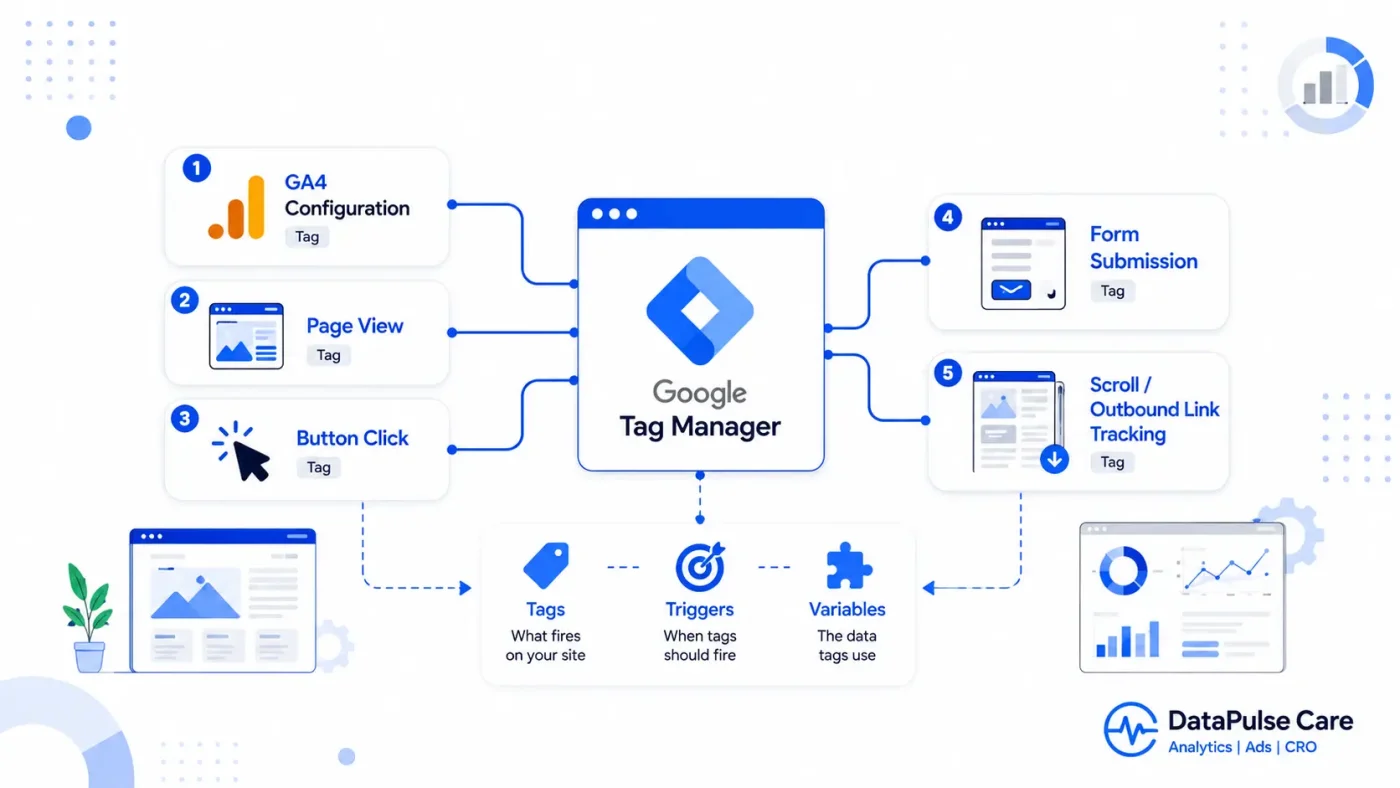
Google Tag Manager has a reputation for being confusing, but the confusion usually comes from skipping the underlying concept: GTM doesn’t track anything by itself. It’s a container that fires tags (scripts) when triggers (conditions) are met, using variables (data) to fill in the details. Once that clicks, the rest is mechanical.
Before your first tag: install the container correctly
GTM gives you two code snippets one for the <head>, one right after the opening <body> tag. Both need to be on every page, not just the homepage. This is the single most common reason “GTM isn’t tracking anything” turns out to be a missing snippet on a template page.
Tag 1: GA4 Configuration tag
This connects GTM to your GA4 property. Tag type: “Google Analytics: GA4 Configuration.” Paste your Measurement ID (starts with G-). Trigger: “All Pages.” This single tag is what makes every other GA4 event tag work without it, event tags fire but have nowhere to report to.
Tag 2: Page view confirmation (via Preview mode, not a new tag)
Before adding more tags, open GTM’s Preview mode and visit your site. You should see the GA4 Configuration tag fire on page load in the debug panel. If it doesn’t fire, stop here and fix that first everything else builds on this working.
Tag 3: Button click tracking (a GA4 Event tag)
Pick one real button “Contact Us” or “Chat on WhatsApp.” Create a trigger: “Click – All Elements,” fire on “Some Clicks,” condition “Click Text contains [your button text]” or, more reliably, “Click Classes contains [your button’s CSS class].” Then create a GA4 Event tag, event name like contact_click, and attach this trigger.
Tag 4: Form submission tracking
Trigger type: “Form Submission.” This requires GTM’s built-in form listener, which you enable under Variables → Configure → check the Forms variables, or by using the trigger type directly on newer GTM versions. Watch out for JavaScript-driven forms (React, single-page apps) the native Form Submission trigger often doesn’t fire on these, and you’ll need a custom event pushed to dataLayer from the form’s own success handler instead.
Tag 5: Scroll depth or outbound link tracking
Trigger type: “Scroll Depth” (set thresholds like 25/50/75/90%) or “Click – Just Links” with a condition like “Click URL does not contain yourdomain.com” for outbound clicks. These are genuinely useful for understanding engagement on long pages like blog posts or pricing pages.
The three mistakes that cause 90% of “GTM isn’t working” tickets
- Forgetting to publish. Preview mode changes are not live. You must click “Submit” and then “Publish” in GTM for changes to affect real visitors.
- Duplicate GA4 Configuration tags. If both GTM and a hardcoded gtag.js snippet are on the same page, you’ll get every event counted twice. Pick one method — GTM or hardcoded — never both.
- Triggers that are too broad. A trigger set to “All Elements” with no specific condition will fire on every click on the page, flooding your reports with noise and making the one event you actually cared about impossible to isolate.
How to know it’s actually working
Don’t trust GA4’s Realtime report alone it shows events happened, but not whether the parameters are correct. Use GA4 DebugView alongside GTM’s Preview mode: click your tracked button, and you should see the event appear in DebugView within a few seconds, with the parameters you expect attached to it. If the event shows up with missing or blank parameters, the tag fired but the variable feeding it is misconfigured a very different problem than “tracking isn’t working” and much faster to fix once you know that’s what’s happening.

Leave a Reply