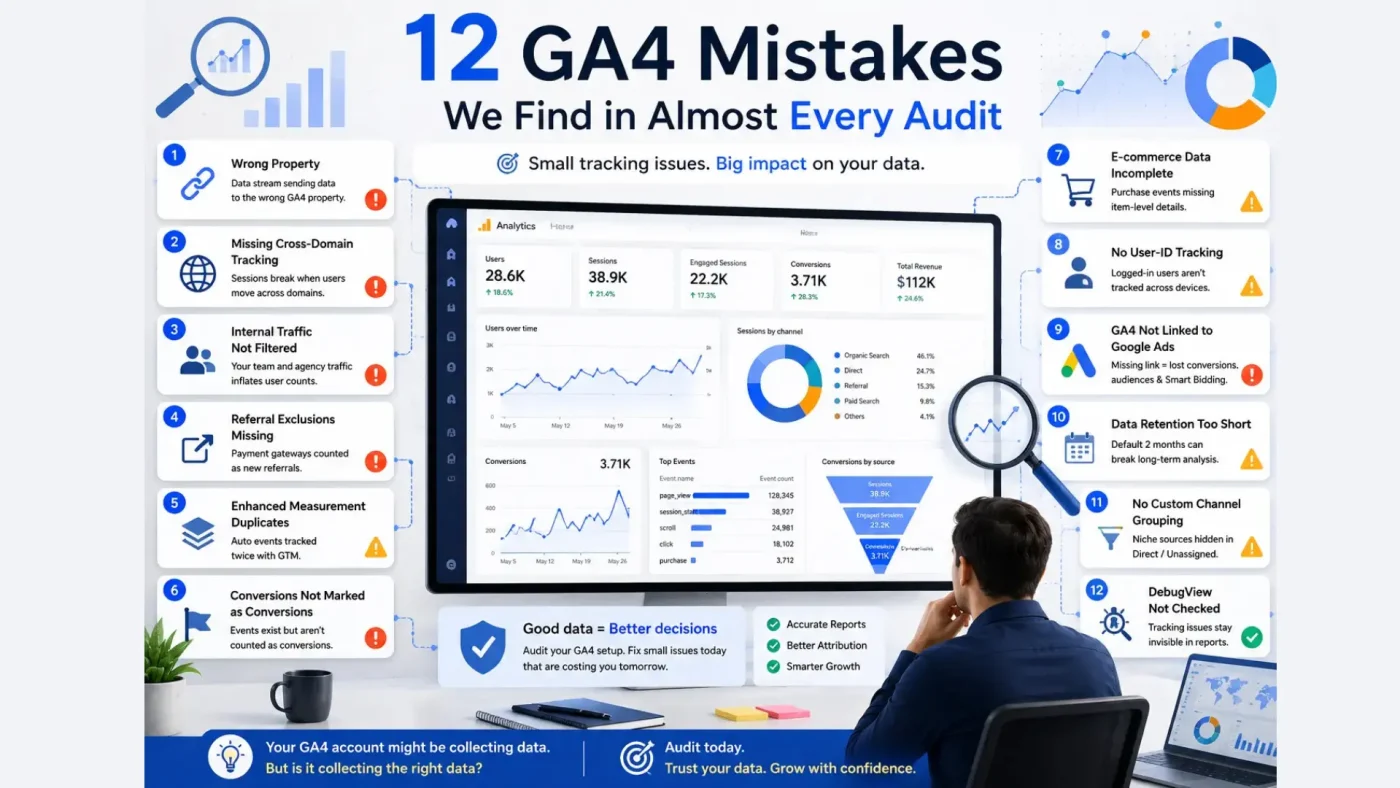
Most GA4 accounts we audit look “set up” data is flowing, reports aren’t empty but that’s a low bar. Data flowing isn’t the same as data you can trust for decisions. Here are the 12 things that quietly go wrong most often, roughly in the order we check them.
1. Data streams pointing to the wrong property
This happens more than you’d think after a site migration or a rebuild the GA4 tag is live, but it’s firing into a leftover test property instead of production. Always confirm the Measurement ID in your tag matches the property you’re actually reporting from.
2. No cross-domain tracking configured
If checkout, booking, or payment happens on a different domain (common with Shopify, Calendly, or a separate payment processor), GA4 will treat that as two separate sessions unless you explicitly list both domains under Admin → Data Streams → Configure tag settings → Configure your domains.
3. Internal traffic isn’t filtered
Your own team, your agency, and anyone testing the site are still counted as “users” by default. Set up an internal traffic rule (Admin → Data Settings → Data Filters) using your office or VPN IP range, and actually switch the filter from “Testing” to “Active” this step gets skipped constantly.
4. Referral exclusion list is missing payment gateways
If customers get redirected through PayPal, Stripe Checkout, or a local payment gateway and back, GA4 can misattribute that as a new referral session, breaking your conversion attribution. Add those domains to the referral exclusion list under Data Streams settings.
5. Enhanced measurement is silently double-counting events
GA4’s automatic Enhanced Measurement (scroll, outbound clicks, file downloads) is useful, but if you’ve also manually coded the same events via GTM, you’ll get duplicates. Check Admin → Data Streams → Enhanced Measurement against your GTM container before trusting any event counts.
6. Conversion events aren’t actually marked as conversions
Creating an event isn’t enough — GA4 won’t treat it as a conversion for reporting or Google Ads bidding until you toggle it on under Admin → Events → Mark as conversion. This is the single most common reason “conversions” show as zero in a otherwise healthy account.
7. E-commerce events are missing item-level data
A purchase event that fires without item ID, item name, or value attached looks complete in real-time reports but is useless for revenue analysis later. Verify with GA4 DebugView that item parameters are populating, not just the event name.
8. No user-ID tracking for logged-in users
If your product has accounts (SaaS dashboards, membership sites), not passing a user ID means GA4 can’t stitch a single customer’s behavior across devices or sessions. This is a Google Signals / User-ID configuration, not automatic.
9. Google Ads and GA4 aren’t linked
An unlinked GA4 property means Google Ads can’t use GA4 conversions for Smart Bidding, and you lose access to audiences built from GA4 behavior. Check Admin → Google Ads Links — this is a two-minute fix that’s frequently just never done.
10. Data retention is set to the default 2 months
GA4’s default event data retention is 2 months for some report types. For year-over-year comparisons this quietly breaks. Change it to 14 months under Admin → Data Settings → Data Retention — it won’t recover past data, but it stops future data from expiring too early.
11. No custom channel grouping for niche traffic sources
WhatsApp shares, QR codes, and offline campaign links often get bucketed into “Direct” or “Unassigned” by default, hiding real traffic sources. Custom channel groups (Admin → Data Settings → Channel Groups) fix this, but only if someone builds them.
12. Nobody has looked at DebugView in months
DebugView (Admin → DebugView, with the GA4 debug extension or a debug parameter) is the only reliable way to see events firing in real time with their actual parameter values not just that “an event fired,” but what data came with it. Most tracking bugs are invisible in standard reports and only show up here.
The pattern behind all twelve
None of these are exotic. They’re all things that get skipped during a rushed setup and then never revisited, because the account “looks fine” from the outside. An audit against this list usually takes under an hour and routinely surfaces at least three or four issues, even on accounts that have been live for years.
Leave a Reply